
This only applies if you have external Teams environments you connect to.
It's important to keep in mind that your AIR account is a completely different user to the rest of the world. This means Teams environments you used to have access to won't recognize you and you would need to be reinvited.
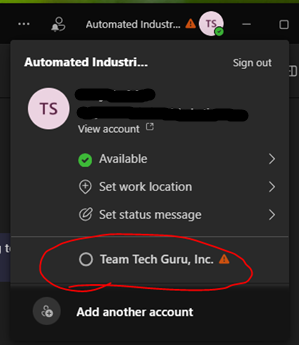
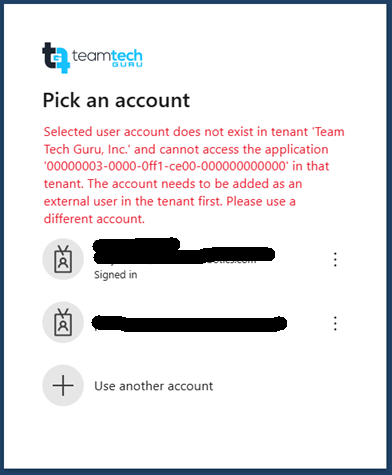
It's possible you see a similar messages like this for external Teams environments you connect to:
Option #1 - Clear Teams Cache and Request new Invites
Close Teams completely. Make sure it's not running in the background (check your system tray near the clock, right-click the Teams icon, and select "Quit").
Open File Explorer (the yellow folder icon).
Type
%appdata%\Microsoft\into the address bar at the top and press Enter.Find the "Teams" folder and delete it. Don't worry, this only removes temporary files, not your actual data.
Now, type
%localappdata%\Microsoft\into the address bar and press Enter.Find the "Teams" folder here as well and delete it.
Once done, you will need to request whoever invited you to their Teams to do so again.
Option #2 - Request your account to be cleared out
This may be harder and depend on the ability to reach the other Teams environment IT department. They can also clear out your old account from their directory and then re-invite your AIR user.